快速了解
它能做什么
将飞书、Lark、钉钉、企业微信、微信、QQ 和 Telegram 接入本机 DeepSeek Harness agent。
本站提供的是中文说明,不代表该项目或 Plugin 自身提供中文界面;语言支持请以上游文档为准。
Web Profile
DSH 0.1.2-rc.1, 0.1.5-rc.1, or 0.1.5-rc.2
证据已验证
核对日期 2026/9/13 UTC 13:52
有代码证据的贡献
它为 DSH 增加什么
在 DSH Web 中添加账号配置,并将 IM 会话单独归入 Channels。
机制证据 ↗选择前先看
这是一个社区维护的 DSH Web 插件,可通过即时通讯工具向本机 agent 发送任务,并在同一聊天中接收回复、交互问题、工具审批提示和受支持的文件回传。每个消息账号可分别配置工作区、模型、推理强度、权限和私聊访问模式。
适合谁
希望在离开电脑时,仍通过已获准的消息账号操作本机 DeepSeek Harness Web 会话的用户。
常见任务
- 在“设置 → IM Assistant”中添加飞书、Lark、钉钉、企业微信、微信、QQ 或 Telegram 账号。
- 从已批准的私聊或群内 @机器人发送任务,并在 DSH Web 的 Channels 中查看独立会话。
- 按账号选择工作区、模型或 Agent 预设,并使用 /new、/status、/sessions、/models 等 IM 命令。
- 向当前会话上传受支持的文件或图片,并接收 agent 生成的受支持文件。
权限与数据
该插件将 DSH 连接到第三方消息平台,并在本机保存账号配置及凭据引用。
权限- 接收已配置消息账号的入站消息。
- 向已连接的聊天发送任务回复和受支持的生成文件。
- 只有白名单私聊用户可以批准或拒绝工具;群聊回复不能批准工具。
- channels.json 保存每个账号的工作区、模型、权限、私聊访问、启用状态和凭据引用。
- 令牌和密钥优先使用 DSH 凭据;否则 README 说明可能保存在仅当前用户可访问的明文 secrets.json 中。
- IM 聊天会作为独立 DSH Channels 会话保存。
- 取决于所配置账号的飞书、Lark、钉钉、企业微信、微信、QQ 和/或 Telegram。
- 需要平台对应的扫码绑定或凭据;Telegram 需要 Bot Token。
- 钉钉、企业微信和 QQ 的手动配置可能需要平台机器人凭据。
局限
- 这是社区维护的插件,并非 DeepSeek AI 官方产品。
- 需要可用的 DeepSeek Harness Web;文档说明 DSH 0.1.0-rc.8 和 0.1.1-rc.2 不受支持。
- 微信仅支持官方 iLink 扫码且仅限私聊;同一 Telegram 机器人不能启用 Webhook。
- 群消息需要 @,私聊准入按账号控制。
- 文件和图片行为仍受 DSH 模型能力、主机限制和平台限制约束。
DSHub 已核对
- 不可变源码提交和 DSH bundle 结构已经验证。
- 包声明了对 DSH 0.1.2-rc.1、0.1.5-rc.1 和 0.1.5-rc.2 的 peer dependency 支持。
- README 记录了七个消息渠道、按账号设置和 DSH CLI 安装方式。
DSHub 未核对
- 未在 DSH 环境中实际执行安装。
- 未测试真实消息连接、凭据流程、消息投递、工具审批或文件传输。
- 未审计已发布 npm 包的具体内容。
固定版本安装
安装 DSH IM Connect
这个Plugin Bundle没有 DSH Plugin 安装操作,请根据源码文档使用真实交付方式。
维护者原文
项目 README
DSH IM Connect
Connect Feishu, Lark, DingTalk, WeCom, WeChat, QQ, and Telegram to local DeepSeek Harness
简体中文 · Changelog · Apache-2.0






DSH IM Connect is a community-maintained DeepSeek Harness (DSH) plugin, not an official DeepSeek AI product.
Features
Send tasks to your local DSH through your usual messenger, even when you are away from the computer. Receive replies, answer questions, and handle tool approvals in the same chat.
- Connect familiar platforms: DingTalk, Feishu, Lark, WeChat, WeCom, QQ, and Telegram.
- Configure accounts separately: each account has its own workspace, model, reasoning effort, permissions, and private-access mode.
- Handle task interactions on your phone: send work, read replies, and answer single- or multiple-choice questions. Approved users can approve or deny tools in private chats.
- Keep chat records separate: each IM chat has its own session under Channels in the web workspace.
- Connect by QR code or credentials: use the platform-specific setup in Settings → IM Assistant, then control message reception per account.
- Control access: groups trigger through mentions and private chats follow each account’s access settings, as detailed below.
Who can drive the assistant
Inbound messages are identified before commands, tool approvals, or injection.
| Case | Behavior |
|---|---|
| Group without a mention of this bot | Ignored without a reply or pending approval request; mentioning someone else also does not trigger it |
| Group explicitly mentioning this bot | No binding. Anyone can send work |
| DM from the QR scanner | WeChat / Feishu / Lark / QQ scanners are allowlisted automatically |
| DM from anyone else | Appears on the settings pending list until approved |
| DM after QR binding that does not return user identity | DingTalk / WeCom QR setup returns bot credentials only, so the scanner still needs settings approval |
| DM after manual credentials | Telegram, and DingTalk / WeCom / QQ bound manually, require approval for every DM |
| DM without a userId | Denied |
| Tool approval | Only an allowlisted user in a DM can reply Approve / Deny (or 批准 / 拒绝); group replies do not grant |
| Interactive choice | Reply with an option number or text in the originating IM conversation; separate multiple choices with commas or add a custom answer; only the initiating user can answer in a group |
WeChat is QR-only and DM-only, so the same WeChat account that scanned can talk immediately. A different WeChat account DMing the bot waits for settings approval.
📡 Supported channels
<p align="center"> <code>🔔 DingTalk</code> <code>🐦 Feishu</code> <code>🌐 Lark</code> <code>💬 WeChat</code> <code>🏢 WeCom</code> <code>🐧 QQ</code> <code>✈️ Telegram</code> </p>| Channel | Status | How to connect | You need |
|---|---|---|---|
| 🔔 DingTalk | ✅ Ready | QR, or Client ID / Secret | DingTalk open-platform bot; replies prefer AI Card |
| 🐦 Feishu | ✅ Ready | QR only; creates the bot automatically | Feishu account |
| 🌐 Lark | ✅ Ready | QR only | Lark account |
| ✅ Ready* | Official iLink QR | Dedicated account recommended; DM only | |
| 🏢 WeCom | ✅ Ready | QR (recommended), or Bot ID / Secret | WeCom intelligent bot |
| ✅ Ready | QR, or AppID / AppSecret | QQ Open Platform bot, not a personal QQ account | |
| ✈️ Telegram | ✅ Ready | Bot Token only | @BotFather; do not enable Webhook on the same bot |
✅ Ready = text in and out works | *WeChat = official iLink only, no reverse-engineered personal protocol | Groups still require an @ mention
Image input
Image input follows DSH Chat's model-capability and attachment rules rather than guessing vision support from model names:
The receive paths cover WeChat, WeCom, DingTalk, Feishu, Lark, QQ, and Telegram. See the image-input verification guide for protocol forms and live checks.
- Use the model currently selected for the IM session, not just the global default.
- When the model declares
imagesupport, store images as standard DSH attachments and submit image content to the model. Session history keeps image references rather than only local-path text. - When the model explicitly excludes image input, tell the sender to switch models instead of silently dropping the image. Missing capability metadata follows Chat's compatibility behavior and is not, by itself, a reason to reject an image.
- Channel download limits, host attachment size and format limits, DM access rules, and group mention requirements still apply.
- This is inbound image analysis, not a promise that every channel supports sending images from the bot or generating images.
File input
WeChat, WeCom, DingTalk, Feishu, Lark, QQ and Telegram accept ordinary files through Chat’s upload service for the current session. Send PDFs, documents or spreadsheets for the assistant to process. Format support follows web Chat’s models, tools and file capabilities; uploading does not guarantee that every format can be understood directly.
- Requires the file-upload service in DSH
0.1.5-rc.1or0.1.5-rc.2. On0.1.2-rc.1, file input asks you to upgrade; existing text and image support is unchanged. - Up to 4 ordinary files per message, totaling 20 MiB. Channel download limits also apply.
- Files become standard Chat attachments and are submitted with session-specific receipts, rather than local-path text.
- Private admission and group mention rules remain in force. File captions such as
/newor “allow” are content, not commands or approval responses. - Failed uploads do not submit partial text. Disabling or reloading an account prevents later submission to the old session. Generated files can be sent back after the reply.
File delivery
WeChat, WeCom, DingTalk, Feishu, Lark, QQ, and Telegram can return files produced by the assistant. For example: “Create a PDF report and send me the file.”
- Files successfully created or edited with Chat's supported file tools are sent after the reply. On hosts with
present, explicitly presented files are also sent, including existing files. - File access follows Chat: files outside the workspace are allowed when the host can read them. The plugin does not extract arbitrary paths from reply text. Files created through shell commands need to be presented explicitly.
- Newer hosts use Chat's complete-file download service and its configured size limit. DSH
0.1.2-rc.1uses the host filesystem with a 32 MiB limit. Directories and symbolic links are not sent; channel-specific file limits still apply. - A failed transfer produces a message naming the file and does not stop the remaining files. Switching away from the session or stopping the account prevents pending delivery from continuing to a different target.
- Send
/exportas a standalone command to receive the current linked session’s Chat ZIP logs in this chat, without child sessions. The ZIP limit is 32 MiB; channel limits also apply. If the file is too large or cannot be sent, use/exportin web Chat. Paths and other session IDs are not accepted.
Action menu
After a valid selection, supported cards remove their buttons and mark the selection; the following reply reports the actual result. WeCom updates are limited to the button callback window; expired actions are still rejected by the server. /status offers actions based on the current state, such as stopping a task, pausing or resuming a goal, and viewing queued messages.
On channels with native buttons, /sessions, /workspaces and /models open a selector directly. After paging, numbered replies and /session N, /workspace N or /model N refer to the current selection page. Text channels keep their original list numbering.
Send /menu or /m to select sessions, workspaces, models and Agent presets, or start, stop, export and inspect a session. Lists support pagination. Click a button or reply with the current menu number; ordinary text exits the menu.
Menus include previous, next and back actions. WeCom menus paginate to fit card limits, including the main menu (/menu 2). Open a selector directly with /menu sessions, /menu workspaces or /menu models; presets and reasoning use /menu presets and /menu reasoning.
Common command replies offer related next steps: for example, /model → select a model / adjust reasoning → back to menu. Supported channels offer buttons; text replies include the commands to send. Navigation buttons on ordinary result replies do not accept numeric shortcuts, so numbers remain chat input; only selection menus accept numbered replies. Oversized cards fall back to complete text.
DingTalk, Telegram and Feishu/Lark use native buttons. WeCom uses cards when button count and text length fit platform limits. Other cases, QQ and WeChat use numbered text. Explicit rejections and capacity limits fall back to complete text. Uncertain network delivery produces a confirmation notice instead of resending the card. Menus are scoped to the account, chat, operator and session, expire after 15 minutes or restart, and recheck permissions on selection. Used buttons cannot execute again.
Approvals and questions use the same native-button channels: allow once/reject, single-choice selection, and multiple selections followed by submit. Open questions retain text input. If a card cannot show the full prompt or fails to send, text is used without omitting approval details. Existing approval eligibility and requester restrictions apply; disabling commands does not disable pending approvals or questions.
Agent presets: /presets (alias /presetlist) lists presets; /preset shows the current preset. /preset number-or-ID starts and switches to a new session in the current workspace, keeping previous sessions. Use /preset id:ID for numeric IDs and /preset --default for the default preset. Account defaults remain unchanged; later /new commands still use account settings. Native buttons support direct selection; text lists use numbers valid for 15 minutes.
Reasoning: /reasoning (aliases /reasonings, /reasoninglist) lists levels for the current model. Use /reasoning number or /reasoning id:effort-ID, or /reasoning --default to reset. Native channels offer paginated buttons. List selections are bound to the session and model; refresh the list after switching. Model and reasoning updates follow Chat’s default-selection persistence rules.
Work started by an IM message gets one result notice after response and file delivery finishes, with links to recent messages, status, session export and the menu. Failures, stops and delivery failures are distinguished; tasks and files are not retried automatically. When commands are disabled, notices are text-only. Ordinary numbers remain chat input. Approvals and questions keep their existing prompts. Completion navigation is suppressed after switching sessions, disabling the account or starting a later turn.
Message progress
Regular chat messages follow the actual task state. Commands continue to use text replies.
- DingTalk: labels on the original message show queued, thinking, waiting for confirmation, done, failed, or cancelled.
- Feishu / Lark: reactions indicate processing, done, or failed. Waiting keeps the processing reaction; cancellation removes it.
- Telegram: 👀 processing, 🤔 waiting for confirmation, 👍 done, and 👎 failed. Cancellation removes the reaction. Typing is refreshed while processing.
- WeChat: typing is refreshed while processing and stopped when finished or waiting for confirmation. WeCom and QQ retain their existing reply behavior.
Done means the turn completed normally and both text and files were delivered. Stopped or failed tasks and later queued messages are not marked done. Channel permissions and network conditions may prevent status updates without blocking chat. Text labels follow the web language setting.
Connection diagnostics
Use Diagnose connection in account settings to query platform APIs: WeChat configuration, a ping acknowledgement on the existing WeCom connection, DingTalk credentials, Feishu/Lark credentials and bot identity, QQ credentials and gateway, or Telegram bot identity and Webhook conflicts.
Each check reports passed, failed, or unverified, with timing and a suggested next step. No test messages are sent and no extra message polling is started. Passing one check does not verify all messaging permissions. An older backend prompts you to restart DSH and refresh the page. See the connection diagnostics API and validation notes (Chinese).
Screenshots
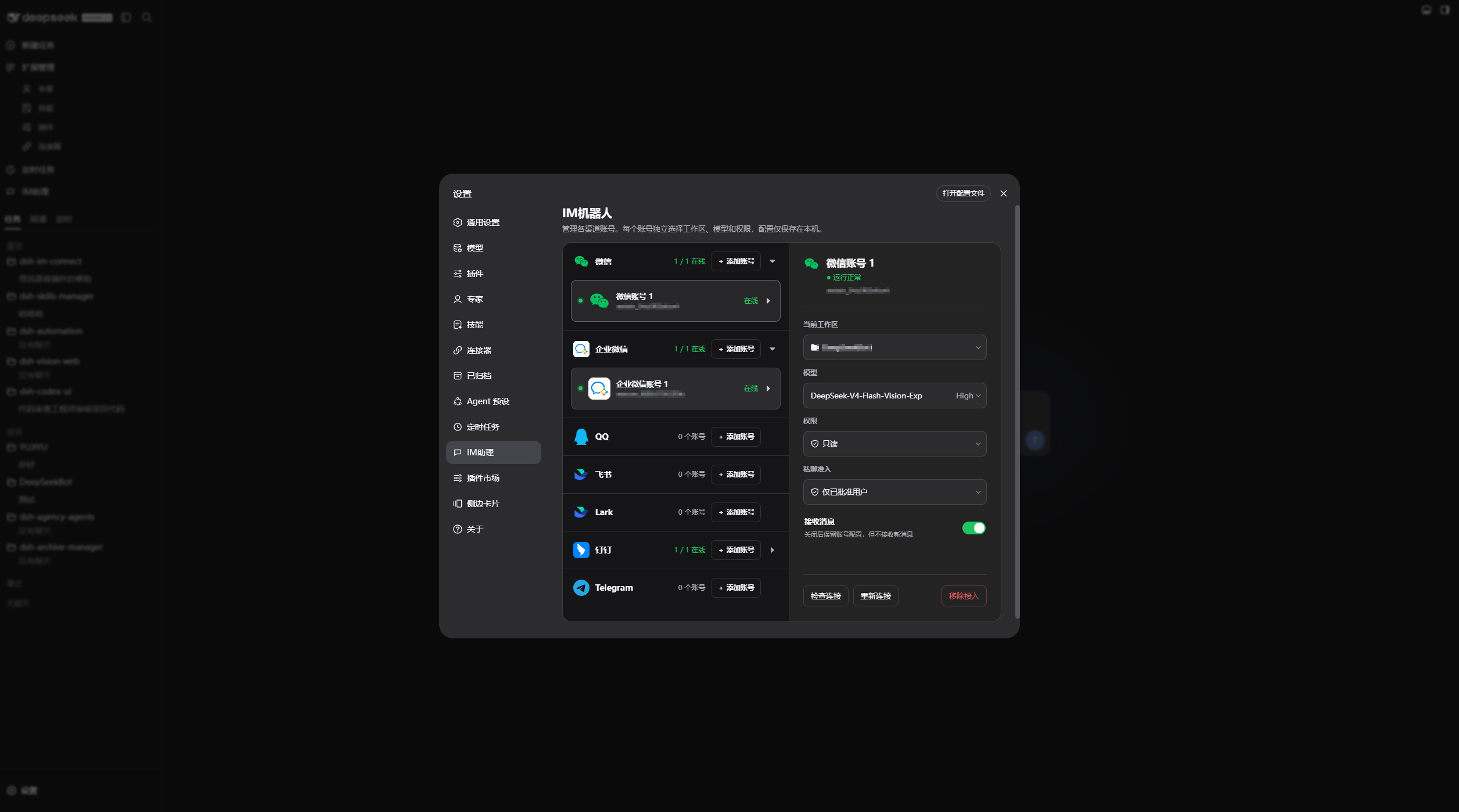
Add accounts under each channel in Settings → IM Assistant. Expand a channel, select an account, and configure its workspace, model, permission, and private access independently in its settings dialog. The Receive messages switch is on the account row:
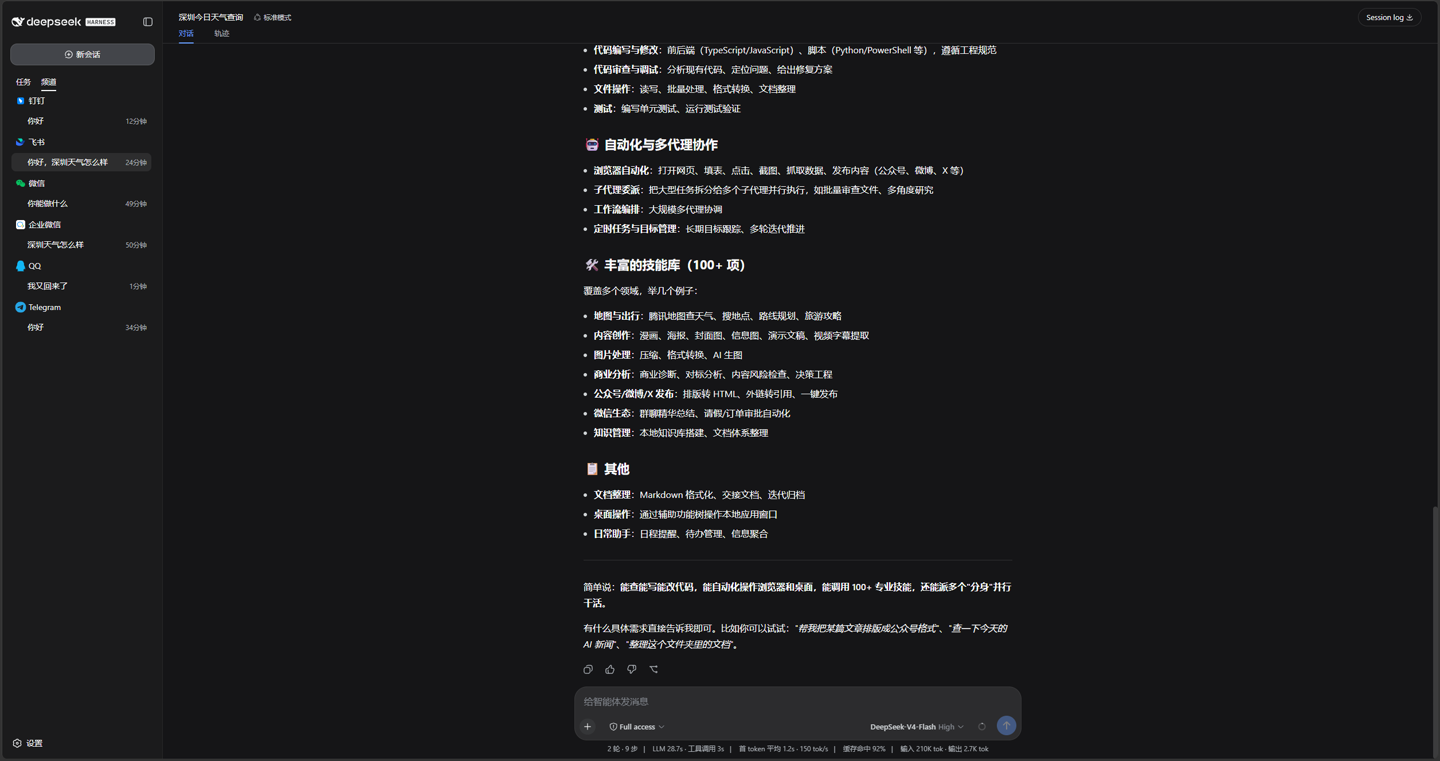
The workspace splits Tasks and Channels. IM sessions appear only under Channels:
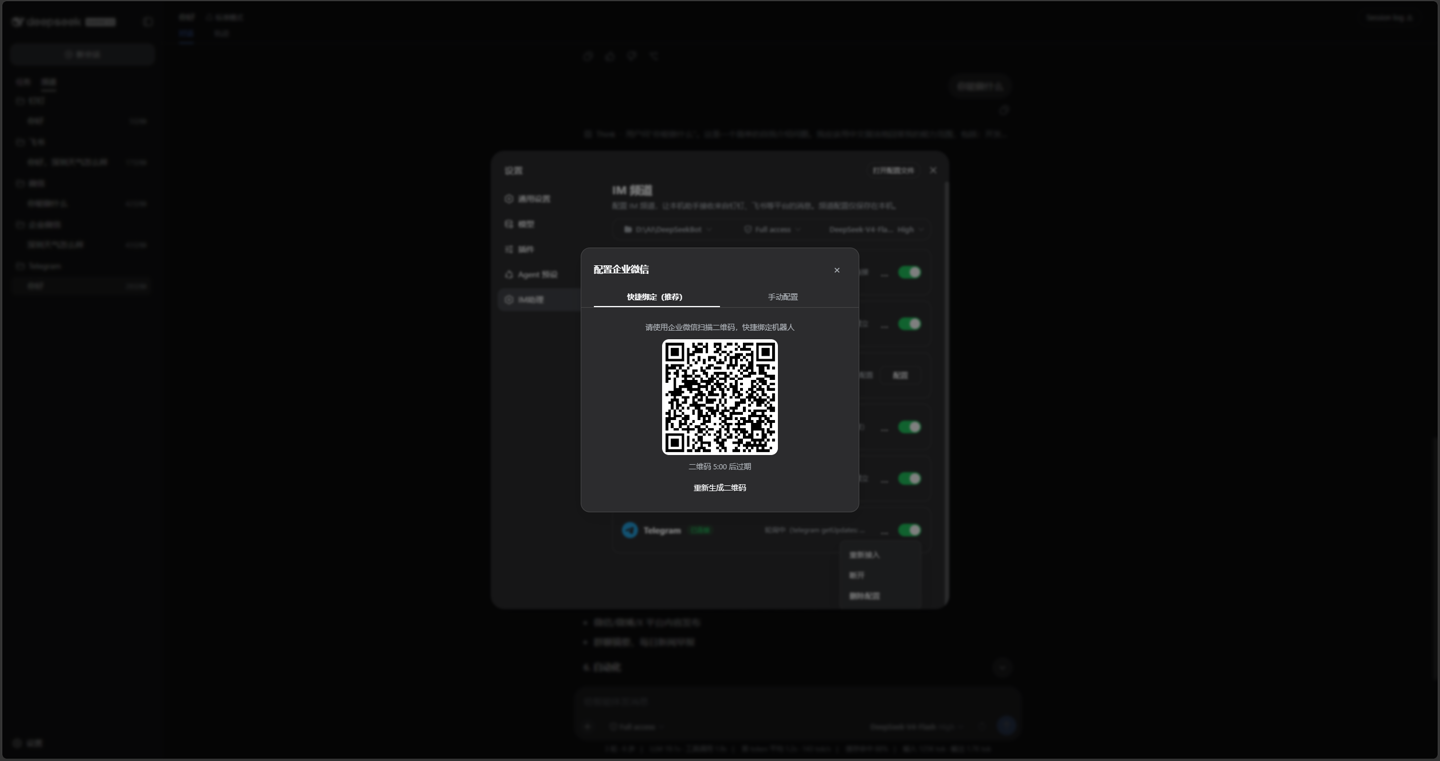
WeCom and other QR channels support scan-to-bind:
After connecting, drive the local assistant from each IM:
<p align="center"> <img src="assets/screenshots/wecom-chat.jpg" width="220" alt="WeCom chat"> <img src="assets/screenshots/weixin-chat.jpg" width="220" alt="WeChat chat"> <img src="assets/screenshots/dingtalk-chat.jpg" width="220" alt="DingTalk chat"> </p> <p align="center"> <img src="assets/screenshots/feishu-chat.jpg" width="220" alt="Feishu chat"> <img src="assets/screenshots/qq-chat.jpg" width="220" alt="QQ chat"> <img src="assets/screenshots/telegram-chat.jpg" width="220" alt="Telegram chat"> </p>DSH product ecosystem
For a ready-to-use workbench, download DSH Codex Desktop. If you already use DeepSeek Harness, install any of these eight plugins individually. The desktop app includes all eight.
| Plugin | What you can do |
|---|---|
| Codex UI | Organize projects and conversations, search tasks, and navigate chat turns |
| IM Connect | Send tasks and receive replies through your usual messenger |
| Automation | Schedule tasks and review each run |
| Skills Manager | Find, enable, create, and import local skills |
| Archive Manager | Search, restore, or clean up archived conversations |
| Agency Agents | Choose and summon specialists for your task |
| BTW | Ask side questions without interrupting the main task |
| Simplify | Use /simplify to improve code within your Git changes |
Prerequisites
- A working DeepSeek Harness Web installation with
dshavailable in PowerShell. - The current source supports DSH
0.1.2-rc.1,0.1.5-rc.1, and0.1.5-rc.2; the latter is recommended and pinned for development. DSH0.1.0-rc.8and0.1.1-rc.2lack the authentication and session-control interfaces this plugin requires; upgrade DSH first. - Examples use the
webprofile; replace it with the target profile. - Source installation and development require Node.js 22+. npm installation does not require running
npm installin an arbitrary directory. - After install, restart
dsh weband hard-refresh the browser before opening Settings → IM Assistant.
Installation
The installation commands below use the official npm registry.
Ask an agent to install it (recommended)
Send the prompt below to any agent that can run terminal commands on your computer. Replace web with your actual profile. Once installed, use the plugin in DSH.
Install the DSH plugin @michengai/dsh-im-connect into my local web profile by running: dsh plugin --profile web add @michengai/dsh-im-connect@latest --registry=https://registry.npmjs.org/. Then run dsh --profile web --dump-config, confirm the configuration includes im-connect, and explain how to reload DSH and start using the plugin.
Install the latest package from the official npm registry
Run this from any PowerShell directory:
[Console]::OutputEncoding = [System.Text.Encoding]::UTF8
$OutputEncoding = [System.Text.Encoding]::UTF8
dsh plugin --profile web add @michengai/dsh-im-connect@latest --registry=https://registry.npmjs.org/
dsh --profile web --dump-config
To pin a release, replace @latest with a version such as @0.1.28.
The configuration output should contain im-connect. Restart DSH Web and hard-refresh the browser. Do not copy client files manually: dsh plugin add also applies cordis.patch.yml.
Updates
The settings title shows the installed version and a Check for updates button. When a newer release is available, Update automatically runs only when the DSH CLI or Desktop update service is available; otherwise, the dialog provides a profile-specific manual command to copy and run.
Usage
Open Settings → IM Assistant, select Add account under the target channel, then choose that account's workspace, model, permission, and private-access mode.
| Goal | Action | Notes |
|---|---|---|
| Add an account | Select Add account under a channel, choose the account settings, then scan or enter credentials | The same channel can contain multiple accounts; Feishu / Lark / WeChat are QR-only, while Telegram needs a Bot Token |
| Change account settings | Expand the channel, select an account, then edit its workspace, model, reasoning effort, permission, or private-access mode in its settings dialog | Changes affect only that account and apply to its subsequent sessions immediately |
| Pause receiving | Turn off Receive messages on the account row | Credentials and settings stay; only new inbound messages for that account pause |
| Send work from IM | WeChat / Feishu / Lark / QQ QR scanners can DM immediately; DingTalk / WeCom scanners and other users need approval. Groups only need a mention | Each chat has its own channel session |
| Split input | End with .. to continue, !! to flush now |
Default merge window is about 5 seconds |
| Start a new session | Send /new or /clear |
Creates and switches the current IM session; previous sessions stay in the Channels list without affecting web tasks |
| Status / help | Send /status or /help |
Current session and dynamically discovered Chat commands |
| Agent preset | Choose Agent preset when adding or editing an account | Uses the Chat roster; changes apply to new sessions while previous sessions keep their preset |
| Command permissions | Open Settings on the account row and toggle DM/group commands | Admission is checked first; disabling commands keeps conversation and approval/question replies available |
| Sessions / workspaces | /sessions, /session <number or ID>; /workspaces, /workspace <number or ID> |
Resume ordinary Chat sessions; workspace selection creates a session without changing account defaults |
| Task controls | /stop, /steer <text>, /queue |
Stop, provide instructions, or inspect the queue; stopping preserves Host queued messages |
| Session with a preset | /presets, /preset <number or ID>, /preset --default |
Starts and connects a new session in the current workspace without changing account defaults |
| Model / reasoning | /models, /model <number or provider/model>, /reasoning [effort or --default] |
Changes the current selection and updates the Host default for subsequent Chat sessions |
| Result recovery | /delivery, /delivery retry <record-ID> |
Check recent deliveries and resend text from the original task |
| Session management | /history, /rename <title>, /fork |
Recent text history, rename, or fork and switch |
| Approve a stranger DM | Open Settings → IM Assistant and approve or deny the pending request | Affects DM access only |
| Answer an interactive question | Reply with an option number or text; separate multiple choices with commas, or enter a custom answer | Multiple questions arrive in order; only the initiating user can answer in a group |
| Approve a tool | Reply Approve / Deny or 批准 / 拒绝 in a DM |
Also accepts yes / no / allow / reject; group replies cannot grant |
| Review on the web | Open the workspace Channels tab | IM sessions never appear under Tasks |
After /workspace, /new and continuing after archiving the current session keep the selected workspace and use the account model, Agent preset, and permission preset. /session and /fork preserve the original session configuration.
DingTalk replies prefer official AI Card streaming. If card creation fails, plain text preserves line breaks; code fences and list markers remain literal. Do not enable Webhook on the same Telegram bot.
Send commands as separate text messages; image captions remain ordinary input. Start with /help; individual replies also suggest related actions.
- Sessions and workspaces: list numbers expire after 15 minutes. Archived sessions are marked; restore them on the web first. Finish running tasks and pending interactions before switching.
- Models: as in Chat,
/modeland/reasoningalso attempt to save the default for future sessions. Other existing sessions are not changed. - Stopping and queues:
/stopsubmits a stop request and keeps queued messages. Pause an active goal separately with/goal pause. Use/queueto view and manage queued messages. - Forking:
/forkrequires at least one completed turn. If a fork was created but switching failed, follow the session ID and recovery instructions in the reply. - Permissions and export:
/permissionsettings survive session restoration./exportfollows private-chat admission and private/group command permissions. Completion is reported only after the ZIP file is sent.
Command replies support Chinese and English and follow the language explicitly saved in web settings. With no preference or an unavailable language service, they default to Chinese. Dynamic names, paths, user content, and extension results remain unchanged. Tool approvals, interactive questions, and some channel errors are not yet fully localized.
Permissions and security boundaries
Command permission does not grant DM admission or replace tool approval. Enabled users can inspect and resume ordinary Chat sessions and execute registered Host commands. Each account has independent DM/group switches without user IDs; legacy configurations default to enabled for compatibility.
| Item | Current behavior |
|---|---|
| Access | Groups need no binding, only a mention. Each account can allow only approved users or all DM users; approved-only is the default, and WeChat / Feishu / Lark / QQ QR scanners are added to that account's allowlist automatically |
| Management API | Uses /api/dsh-im-connect, following the REST prefix used by other DSH plugins. It delegates Host, Origin, and Cookie checks to Host connection.requestRejection, including local requests. Unavailable authentication returns 503; mutations retain JSON, client-header, and 1 MiB limits |
| Secrets | WeChat tokens and other secrets prefer DSH ctx.credentials; otherwise they use plaintext %DSH_HOME%\dsh-im-connect\secrets.json, restricted to the current user and never safe to sync or share |
| Account state | channels.json stores per-account workspace, model, permission, private access, enablement, and credential refs, not raw secrets |
| Browser payloads | Never include tokens, secrets, App Secrets, or internal error details |
| WeChat protocol | Official iLink only; no reverse-engineered personal WeChat protocol |
| Tool approval | Only a user on the current account's allowlist can grant or deny in a DM. Even when all DM users may chat, unapproved users cannot approve tools; approvals cannot cross conversations or come from groups |
| Interactive questions | Single-choice, multiple-choice, and custom questions return to the originating IM conversation; one conversation handles them in order, and only the initiating user can answer in a group |
Keep the DSH backend listening on loopback. Remote access should use a controlled HTTPS reverse proxy, the actual authority in the Host's trustedHosts, and a login through that authority. Do not spoof localhost or remove authentication to bypass 403. Image-download additionalImageHosts does not configure management access; see management authentication. Permission presets use the same host sandbox-policy values as Chat; danger-full-access does not wrap a sandbox.
Development
Install from source
Use this for debugging or unpublished changes. The cloned directory becomes the plugin source path:
[Console]::OutputEncoding = [System.Text.Encoding]::UTF8
$OutputEncoding = [System.Text.Encoding]::UTF8
# Replace this with an existing projects directory.
Set-Location "$HOME\Projects"
git clone https://github.com/MichengAI/dsh-im-connect.git
Set-Location .\dsh-im-connect
npm install
npm test
dsh plugin --profile web add .
dsh --profile web --dump-config
Restart DSH Web and hard-refresh the browser. dsh plugin ... add . reads the package metadata and cordis.patch.yml; do not install by copying lib directly.
This repository develops in src and builds to lib:
- src\index.ts: host entry, config, and lifecycle.
- src\manager.ts: channel start/stop, authenticated management API, and credential persistence.
- src\engine: session routing, slash commands, approval, splitting, and outbound push.
- src\channels: DingTalk, Feishu, Lark, WeChat, WeCom, QQ, and Telegram adapters.
client.js: settings page and workspace channel sidebar.tests\*.test.mjs: routing, QR, credentials, QQ, delivery, and sidebar tests.
After changing the source, test and install from the local directory:
[Console]::OutputEncoding = [System.Text.Encoding]::UTF8
$OutputEncoding = [System.Text.Encoding]::UTF8
npm test
dsh plugin --profile web add .
When changing channel or session logic, keep the engine platform-agnostic, keep adapters from creating agents, and keep web tasks separate from IM channels.
Validation
For real management-authentication tests, set DSH_CONNECTION_CONTRACT_ROOT to the isolated @deepseek-ai/dsh-client-connection package root. The Gateway-coexistence case also uses DSH_CHAT_CONTRACT_ROOT from the image contracts. Local runs skip these contracts when unconfigured; CI supplies both. Tests use temporary HTTP servers and credentials, not a live Cloudflare deployment.
[Console]::OutputEncoding = [System.Text.Encoding]::UTF8
$OutputEncoding = [System.Text.Encoding]::UTF8
npm test
prepublishOnly runs the tests before publishing.
Result recovery after disconnects and restarts
Delivery tracking starts with ordinary IM messages received after this feature is enabled. If the original result is saved but sending has not started, its final text and completion status can be recovered after reconnecting or restarting. Questions, tools, approvals, and files are never replayed. Messages handled by earlier plugin versions are not recovered retroactively.
- Telegram, Feishu/Lark, and WeCom can attempt background delivery using a stable chat destination. DingTalk, QQ, and WeChat wait for a new message in the original chat to refresh the reply channel. Connection, expiry, and platform quotas still apply.
- When sending was attempted but delivery is unconfirmed, automatic resend pauses. Use
/deliveryto check records, then/delivery retry <record-ID>if you want to resend. This may duplicate text you already received. View files in the original session on the web. - Records and resend actions are scoped to the original sender in the current chat, subject to admission and command permissions. Disabling an account, changing the session binding, or changing access pauses recovery. Restore the original binding and access before retrying manually.
- Recovery is available for 7 days per record, with at most 1,000 records. Delivered and definitively rejected records are removed first when capacity is reached; expired records are cleaned up when a new message arrives. Background checks run in batches every 30 seconds. Unreadable history or unfinished tasks remain pending. Recovery does not resume task execution.
License
Security guidance is in SECURITY.md.
Licensed under Apache License 2.0.
有意识地管理
安装与管理
前置条件与目标 Profile
目标: Web Profile
交付方式: Git Bundle — MichengAI/dsh-im-connect#f6539c8c1d05446e88d5977e5b9342727706060e。
验证、更新与移除
显示生命周期命令
dsh plugin --profile web list兼容性与访问范围
Supports declared DSH release candidates; Node 22.19+ required for source use: DSH 0.1.2-rc.1, 0.1.5-rc.1, or 0.1.5-rc.2。
风险事实
证据与编辑审查Manifest、Bundle patch、分发与新鲜度
不可变证据
审查状态与源码活动
连接生产或敏感消息账号前,请审查本机凭据存储方式及账号访问设置。
AI 审查于 2026/9/13 UTC 13:52。GitHub 事实核对日期: 2026/9/13 UTC 13:52。
自当前证据基线以来,没有记录到重要源码变化。